Image and media widgets help you display visual content and documents directly on your website without custom code. These embeddable widgets can turn images, videos, PDFs, and links into interactive sections that visitors can browse or use without leaving the page.
With Jotform’s image and media widgets, you can create photo galleries, image sliders, before-and-after comparisons, interactive flipbooks, PDF viewers, QR codes, and image hotspots. They work well on portfolio pages, product pages, real estate listings, blogs, event websites, online stores, resource pages, and business websites.
What can you do with image and media widgets?
Image and media widgets can help you:
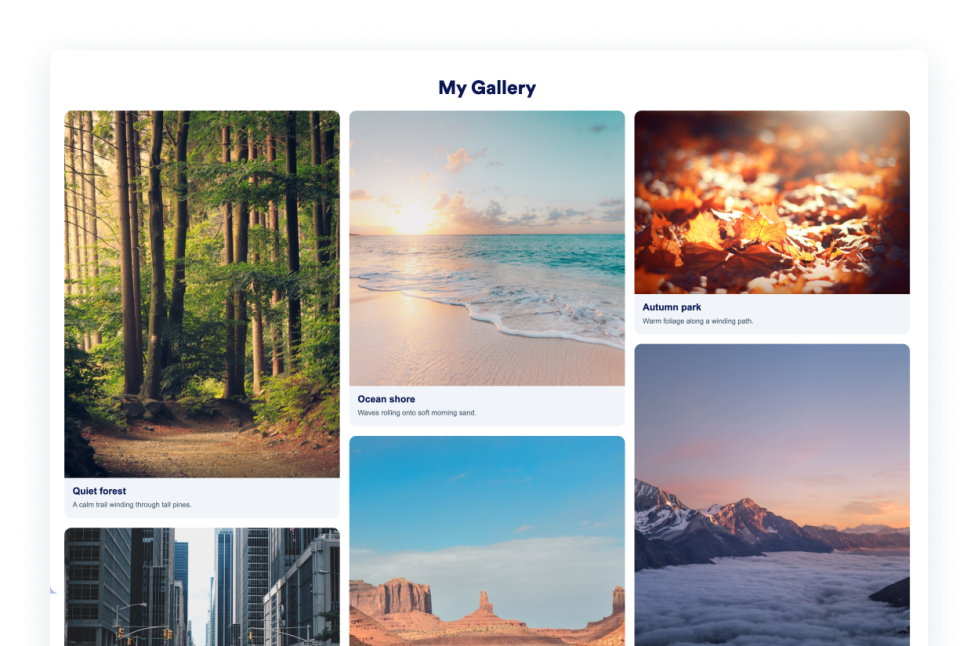
- Display photos in a customizable Photo Gallery
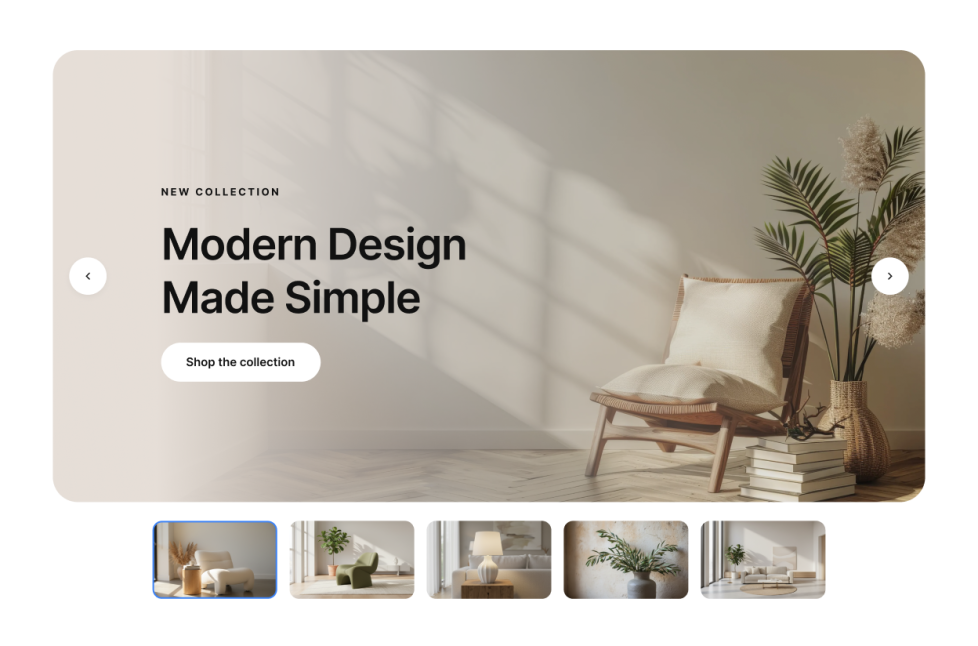
- Rotate images or videos using an Image Slider
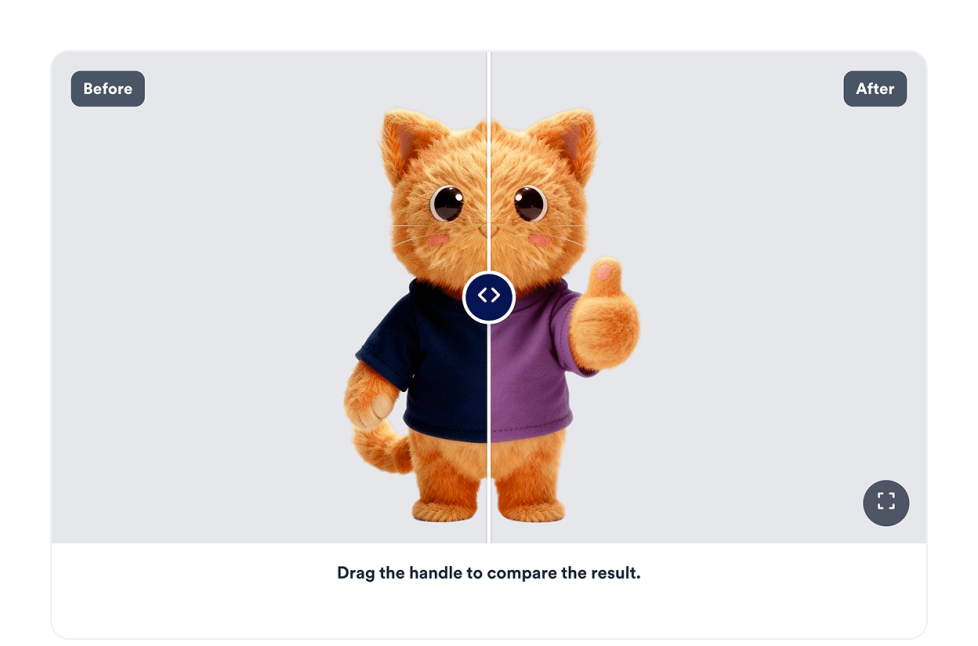
- Compare two images with an interactive Before and After Slider
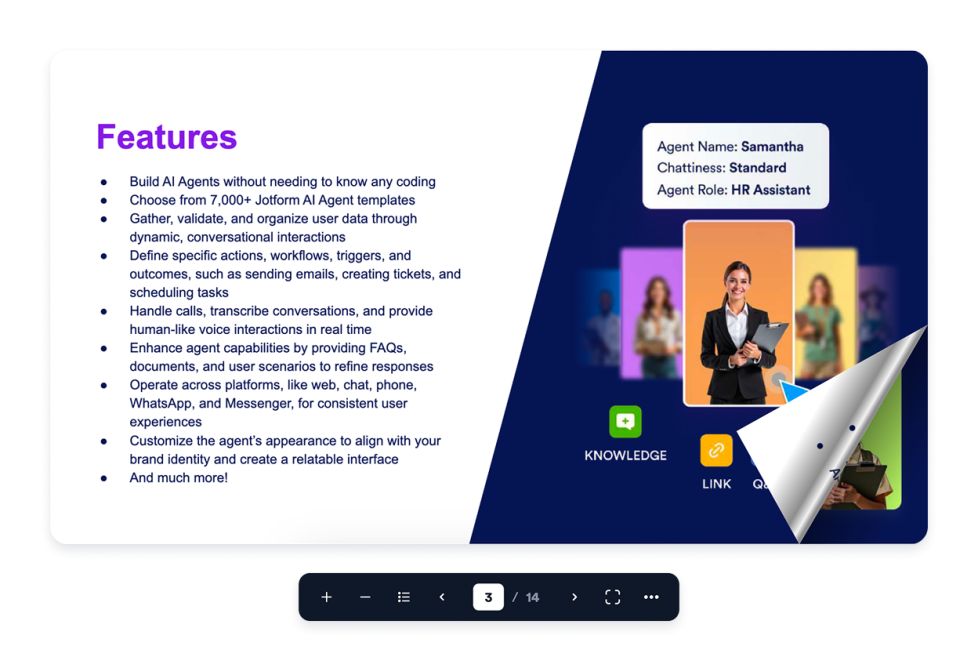
- Turn a PDF into a browsable Flipbook
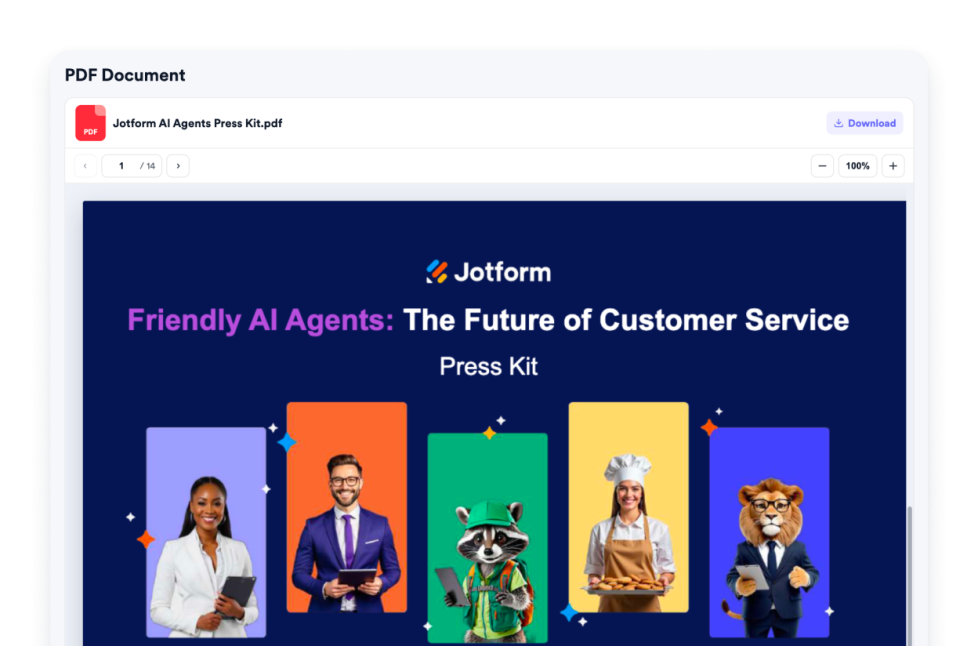
- Embed a PDF directly on a webpage with viewing, zoom, download, and display controls
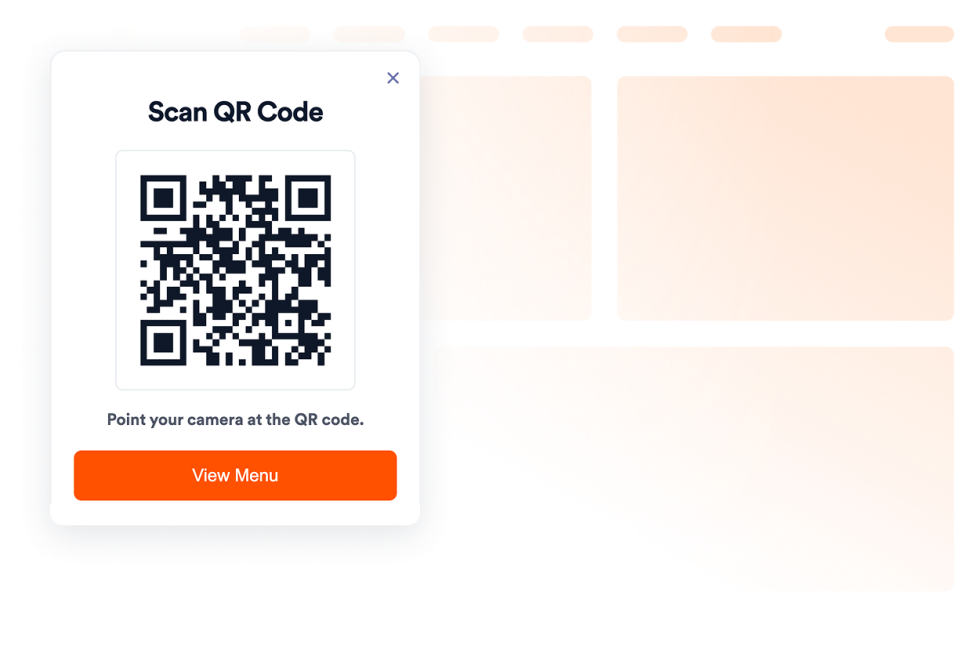
- Add QR codes for menus, forms, downloads, offers, or event links
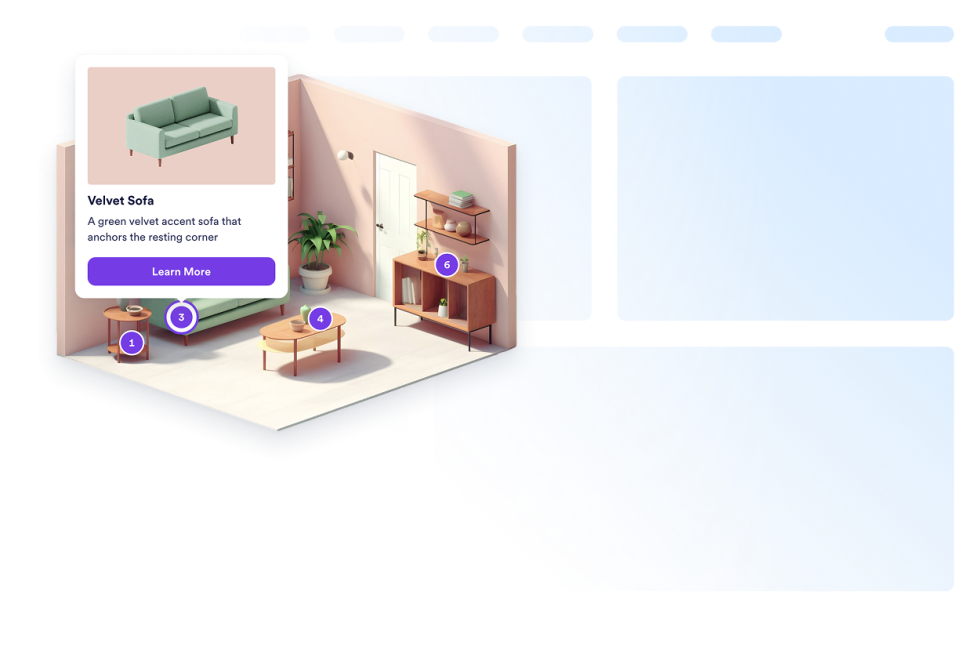
- Add clickable points to an image with an Image Hotspot widget
- Include titles, descriptions, prices, images, and links within image hotspots
- Present visual content without sending visitors to another page or platform
Popular image and media widget use cases
Image and media widgets can support websites that rely on visual examples, documents, or interactive content. Photographers, designers, artists, agencies, and event organizers can use a Photo Gallery widget to organize images in a browsable layout. An Image Slider can present product photos, campaign visuals, featured projects, or image and video highlights in one section.
Home service providers, beauty professionals, fitness businesses, designers, and real estate professionals can use a Before and After Slider to show transformations or compare two views. Online stores and product websites can use an Image Hotspot widget to make parts of a product image clickable and display related titles, descriptions, prices, or links.
A Flipbook widget can turn a PDF into an interactive reader for catalogs, menus, brochures, portfolios, reports, and guides. A PDF Embed widget can display a document directly on a resource page, while a QR Code widget can connect website visitors to forms, downloads, digital menus, offers, or event information.
Easy website widgets for any team
Embeddable image and media widgets are useful for small businesses, photographers, designers, agencies, online stores, restaurants, educators, real estate professionals, event organizers, and content creators that want to publish visual content without relying on a developer or designer.
With Jotform, users can choose a widget, add their images, videos, PDFs, or links, customize the content and design, preview the result, and copy the embed code. They can then add the widget to a supported website editor or HTML section without custom code.
This makes it easier to publish visual portfolios, product displays, image comparisons, downloadable resources, and interactive documents while keeping the content connected to the rest of the website.
Related guides
To learn more about setting up and managing widgets, users can read Jotform’s guide on managing website widgets. The guide explains that users can create new widgets, edit existing widgets, copy embed codes, control widget visibility, and organize their widget assets from the My Website Widgets page.
What are image and media widgets?
Image and media widgets are embeddable website tools for displaying and organizing visual content and documents. They can include photo galleries, sliders, PDF viewers, flipbooks, QR codes, image comparisons, and interactive image hotspots.
What types of media can I display?
Depending on the widget, you can display images, videos, uploaded PDFs, PDFs from direct links, QR codes, and interactive image content. Some widgets also support captions, descriptions, buttons, prices, links, and navigation controls.
Where can I use image and media widgets?
You can use them on product pages, portfolios, real estate listings, restaurant websites, event pages, blogs, online stores, educational pages, and resource centers. Choose a widget based on how visitors need to view or interact with the media.
Do image and media widgets require coding?
No. You do not need a developer or designer. You can customize the widget, copy the embed code, and add it to your website without custom code. The exact placement process depends on your website platform or page editor.